Making 20 Years of Settings Findable
Customer interviews, two card sorts, and a new navigation structure that took a 20-year-old desktop back-office to the cloud — organized and named the way its users think.
- Role
- Sole product designer
- Timeline
- 2020–2025: research in 2020, shipped in phases from 2021
- Team
- 1 product manager, 1 project manager, 2 business analysts, ~12 developers, 3 QA, plus support for feedback
- Tools
- Figma, MindMeister, Trello, Zeplin
The Problem
For more than 20 years, restaurants on our point-of-sale (POS) system ran their business through two desktop apps installed in each store: Menu Designer for menus and order screens, and Store Manager for settings and reports.
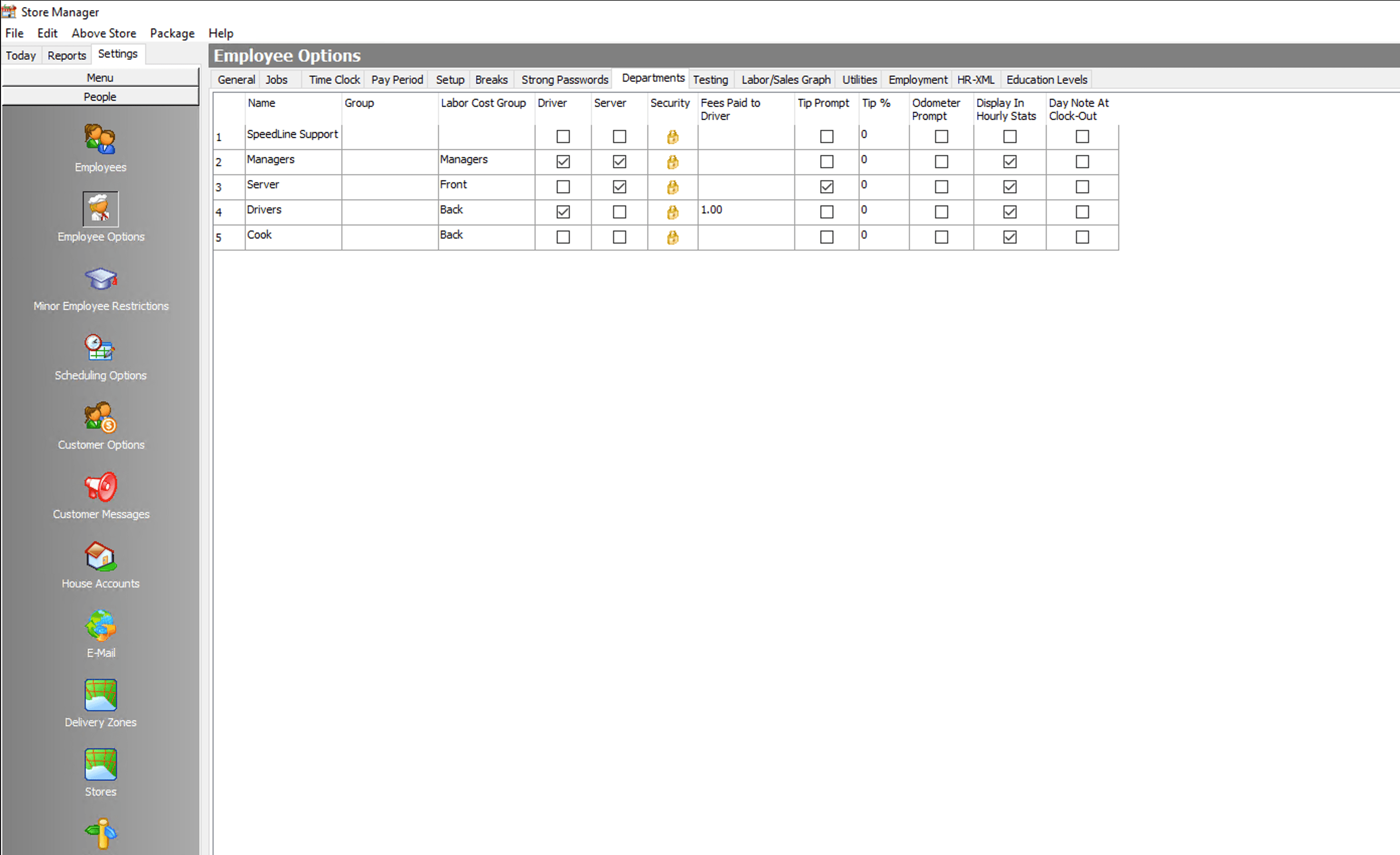
Because the apps lived on in-store computers, owners had to be at the store to change a price, add an employee or run a report. Chains used remote-desktop tools to fix things one store at a time, and installers flew across the U.S. to set up every new location.
Store Manager was also hard to find your way around. Support staff and installers kept telling me the same things:
- Settings in illogical places, like ticket printing under Hardware
- The same setting in two places, which could contradict each other
- No search
- Outdated features still taking up space
The company needed a cloud portal that owners could use from anywhere, organized so they could actually find things.
What the Research Showed
Our business analyst and I interviewed head-office teams at 7 restaurant chains with 330+ locations between them, from a 4-store family business to a 215-store franchise. We also talked with store managers, and I surveyed 10 support specialists and installers about how customers use the old tools.
Four findings shaped the design:
- Most settings are "set it and forget it." Day to day, people mainly run reports and manage employees. → Order the menu by how often things are used, with one-time setup like hardware last.
- People couldn't find things, or find them again. → One flat menu with search, plus a proposed "Frequently accessed" list.
- Head offices wanted to make a change once for every store. → Stores and store groups became a section of their own.
- Inconsistent names caused real damage (see below). → Naming became as important as structure, which led to the card sorts.
Process
- 1. Customer and staff interviews
- 2. Card sort: legacy settings
- 3. Card sort: new top-level structure
- 4. Information architecture
- 5. Navigation sketches and wireframes
Card Sorting and Naming
Store Manager had only three top-level areas: Today, Reports and Settings. Almost everything (menus, staff, payments, orders, hardware, inventory) was buried inside Settings. Experienced users couldn't picture it any other way. "Everything is under Settings" was the answer I heard most, and one person who'd used the app for 14 years didn't see a problem with it.
To find out how people actually think about these features, I ran two card sorts with support specialists, installers, a business analyst, QA and one developer who was new to the product. Because they set up and troubleshoot stores every day, they knew the features better than anyone.
- Open card sort of the legacy Settings (10 people). I asked participants to sort every item in Settings into their own categories and name them. Some groups were obvious: all 10 created an Inventory group, 9 created a money or payments group, and 8 created an orders group. Others weren't. "Settings" showed up as five different names, and two people avoided the idea entirely. One participant called System Options "a cop out" because it was a catch-all.
- Semi-open card sort of the new portal's top level (9 people). Participants created between 4 and 8 top-level groups, with an average of 6, twice as many as the old app had.
The words mattered as much as the groups:
- "People" became "Employees" and "Customers." 7 of 9 participants separated them. They're completely different jobs done by different people.
- "Money" became "Payments," and Taxes got its own section. "Money" made people think of cash, and "Tender" was industry jargon that was especially confusing for non-native English speakers. Participants also pointed out that taxes and gratuity don't belong under either name.
- "System" and "Operations" were dropped. Nobody could say what "System" meant, including me, and only 2 of 10 people used "Operations."
- "Minor Employee Restrictions" became "Restrictions on Minors."
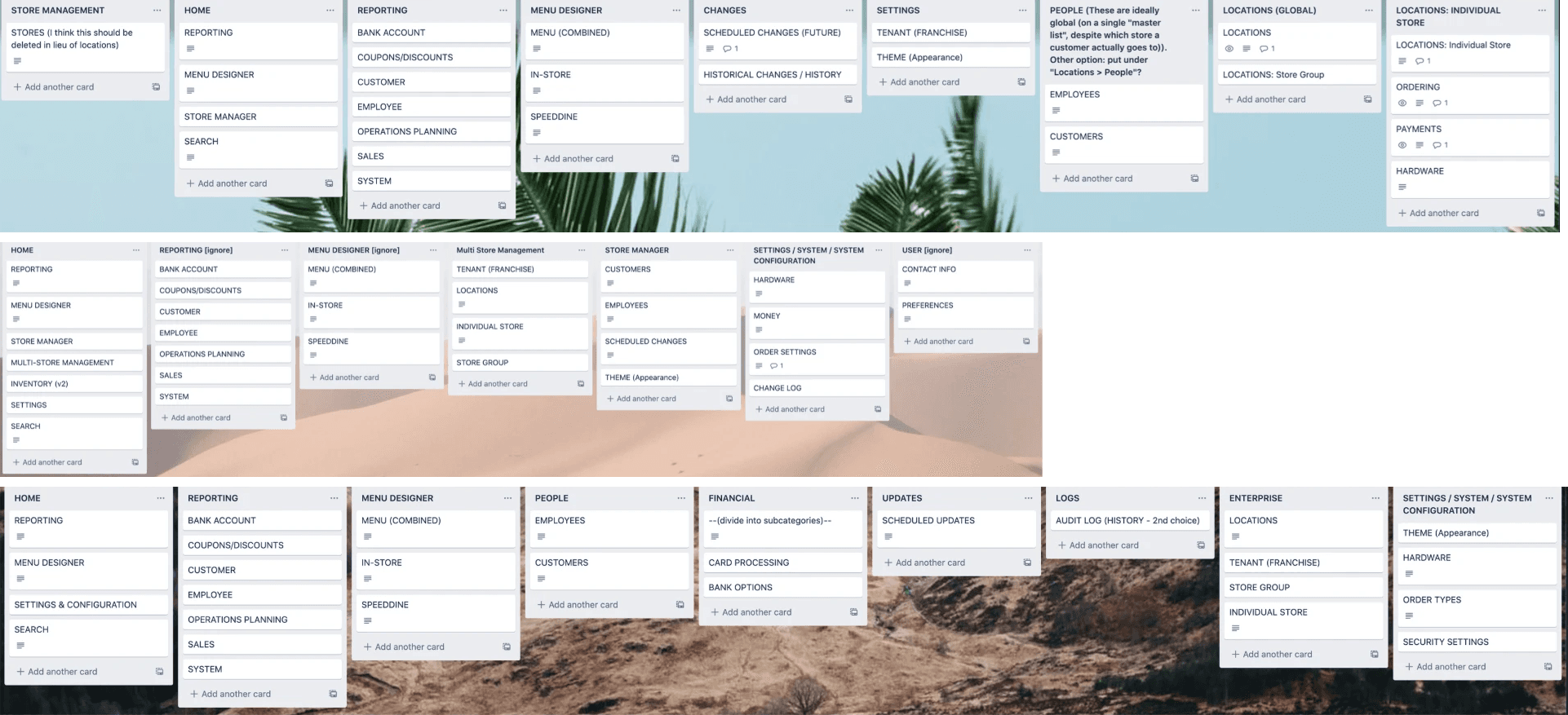
First card sort: how many of 10 participants created each group
- Inventory10 of 10
- Money / Payments9 of 10
- Orders8 of 10
- Hardware7 of 10
- Delivery / Mapping3 of 10
- Inventory setup (separate)3 of 10
Information Architecture
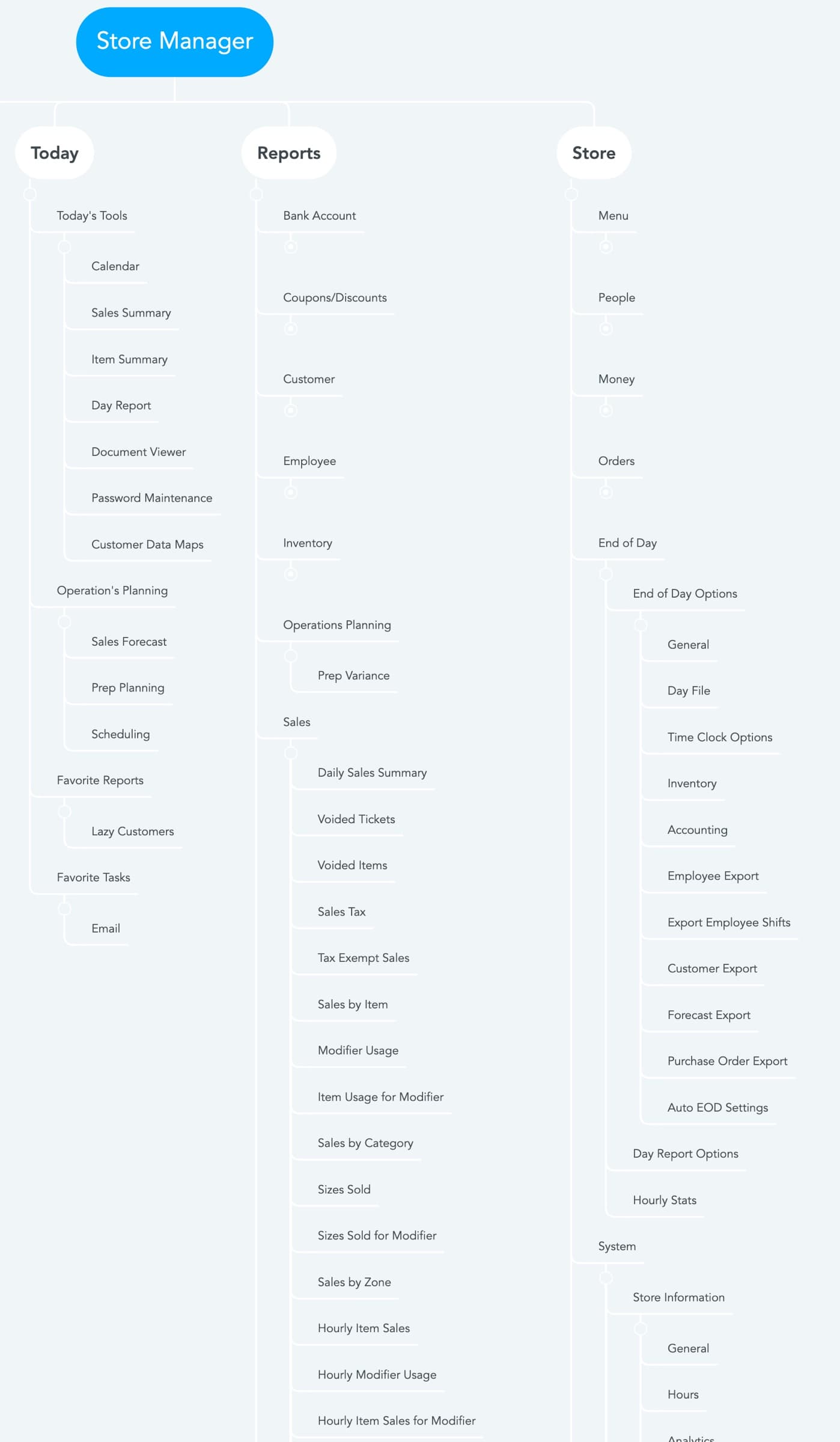
I mapped every screen of the old app, then designed the new structure the same way. The difference in shape says it all. The old app had just 3 branches, and almost everything hung off one of them. The new portal has about 15 top-level branches, so most things are only a click or two away.
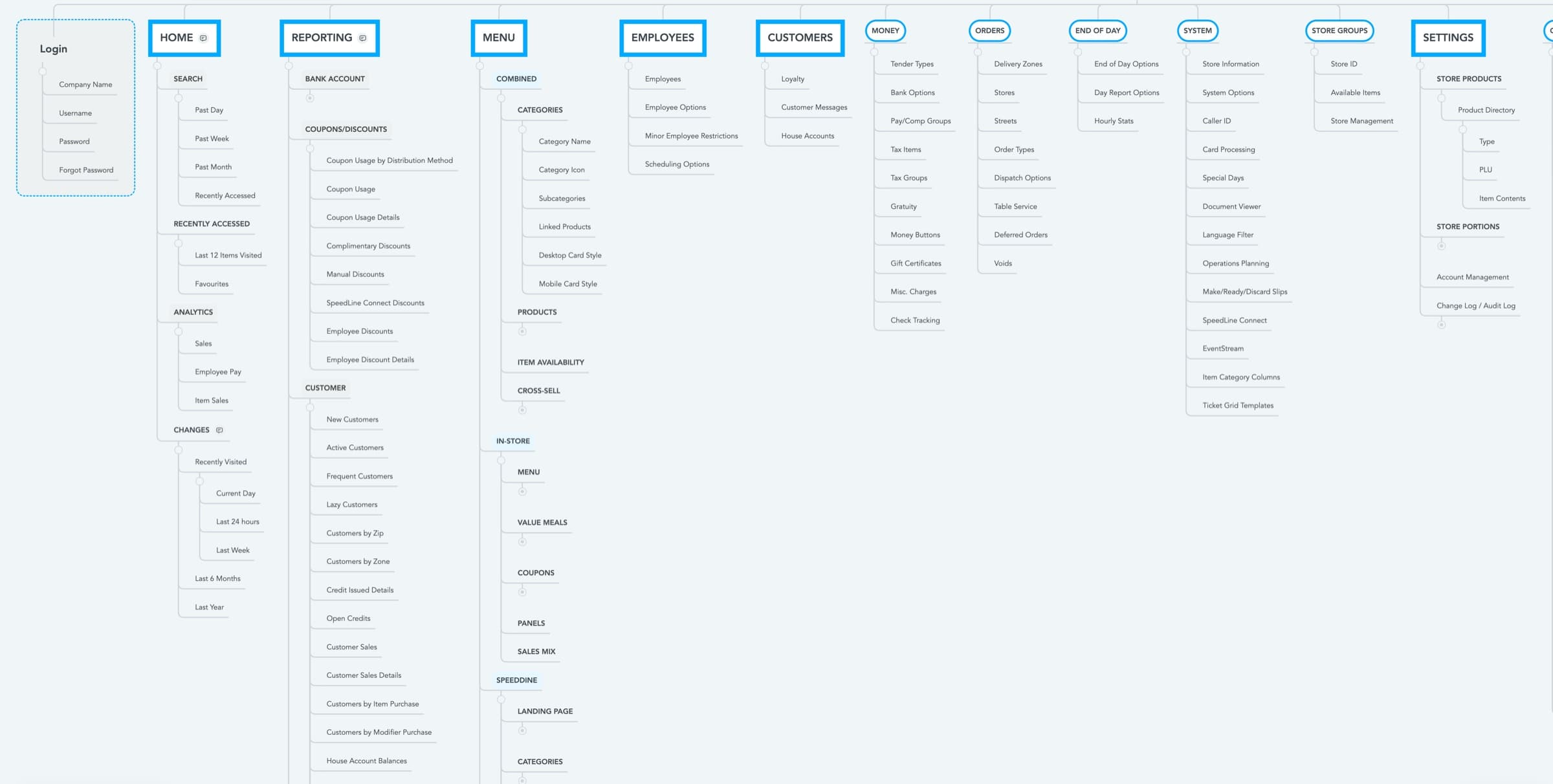
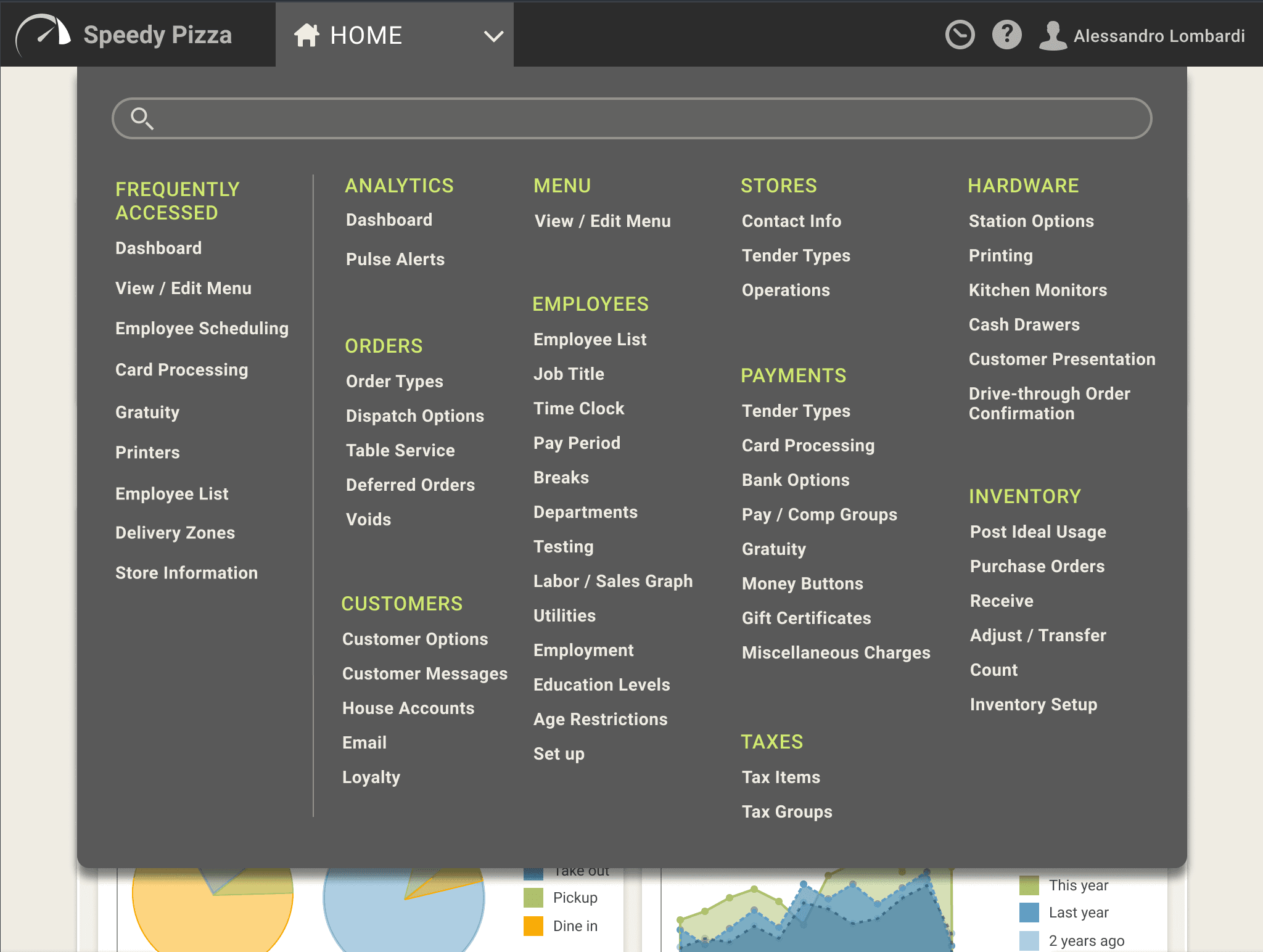
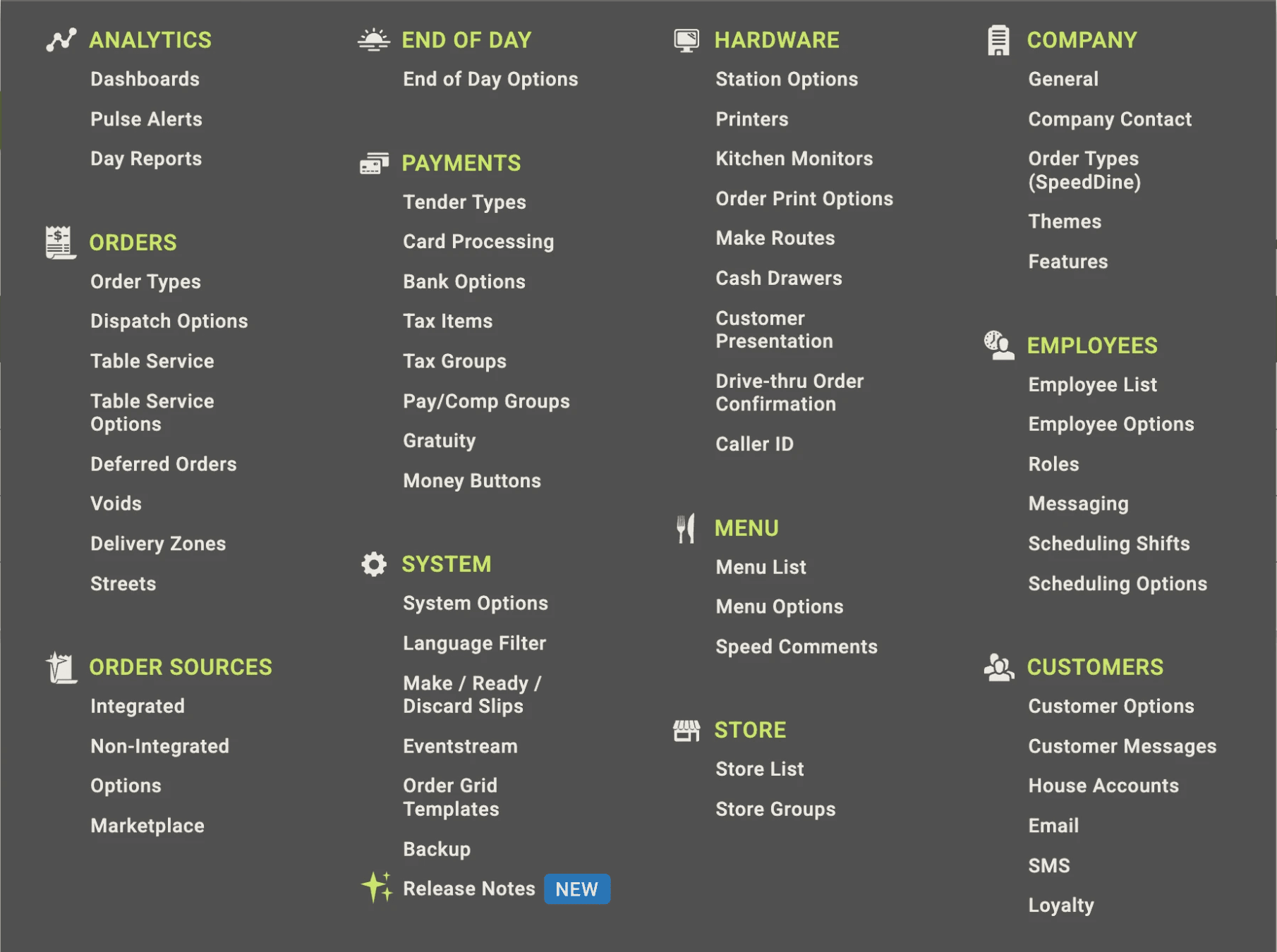
In the navigation menu, that became eleven sections: Analytics, Menu, Orders, Customers, Employees, Stores, Payments, Taxes, Hardware, Inventory and Company, with a search field at the top to jump straight to a setting.
- Separate setup from daily tasks. Inventory setup is done once, while counts and receiving happen every day, so they're kept apart.
- Ship what customers need today. Scheduled changes, change history and inventory were planned for later phases.
Choosing a Navigation Pattern
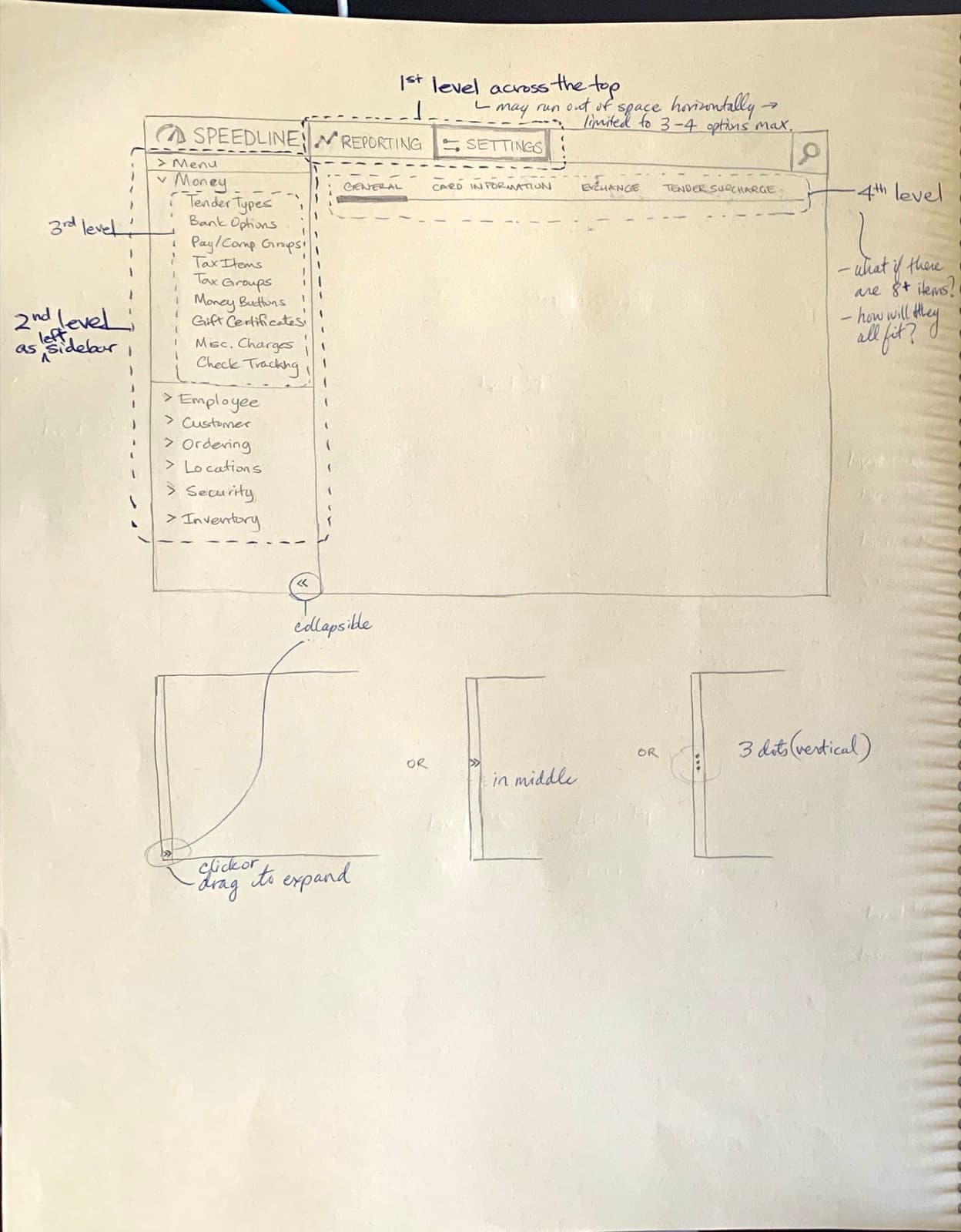
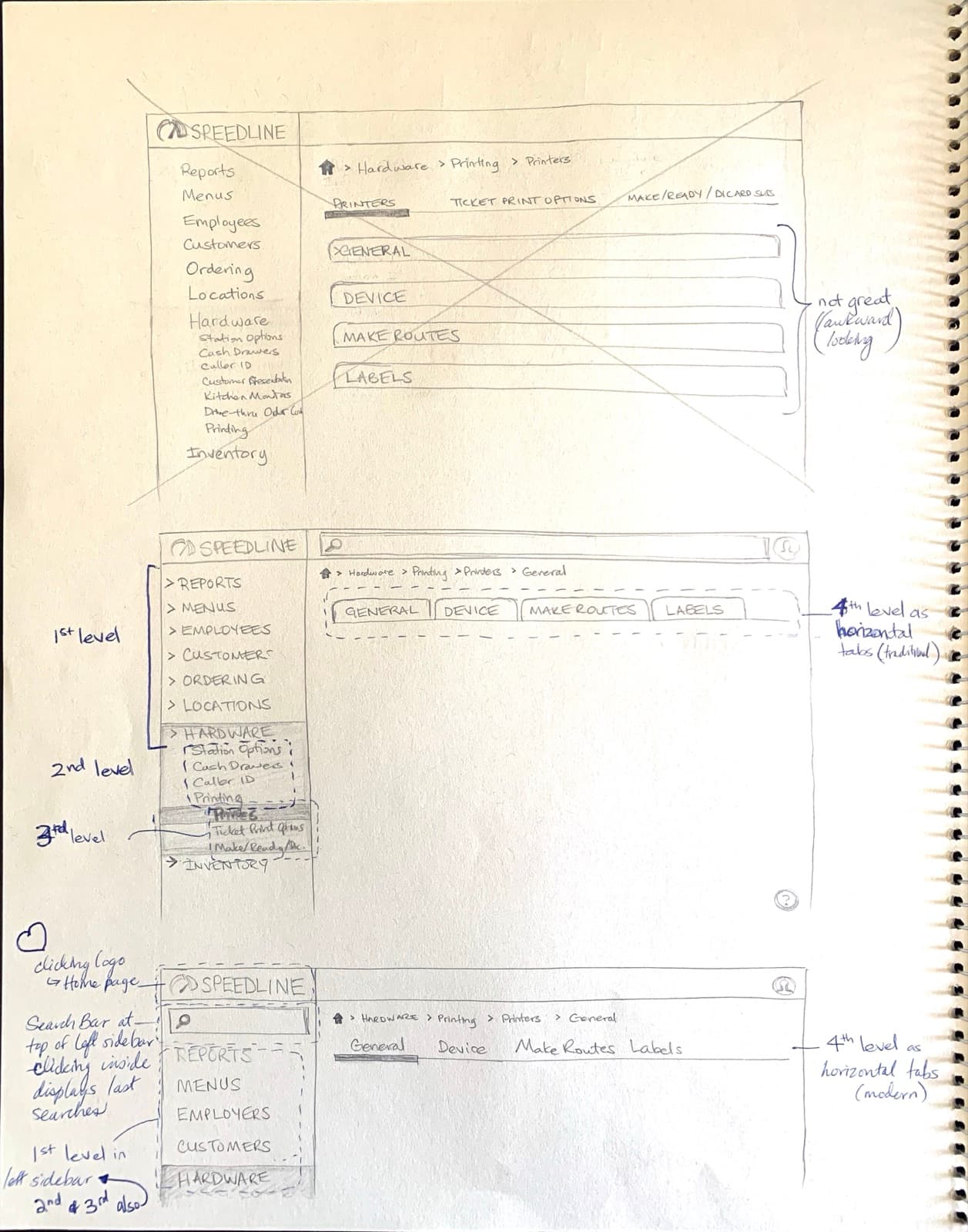
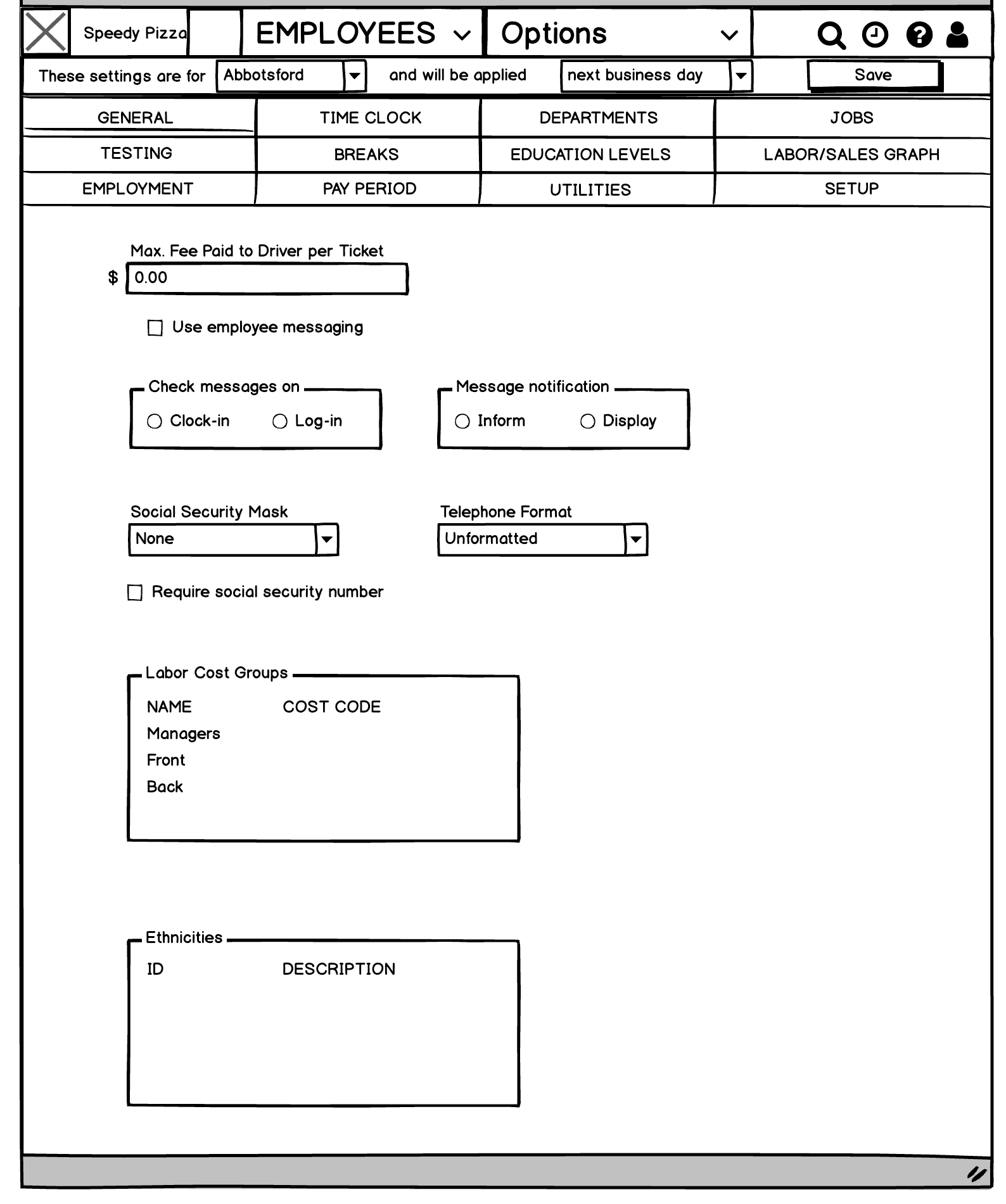
With the sections decided, the next question was how to show up to five levels of settings on one screen. Before I joined the project, the developers' early build used a row of tabs across the top.
I sketched about ten layouts, and two decisions came out of them:
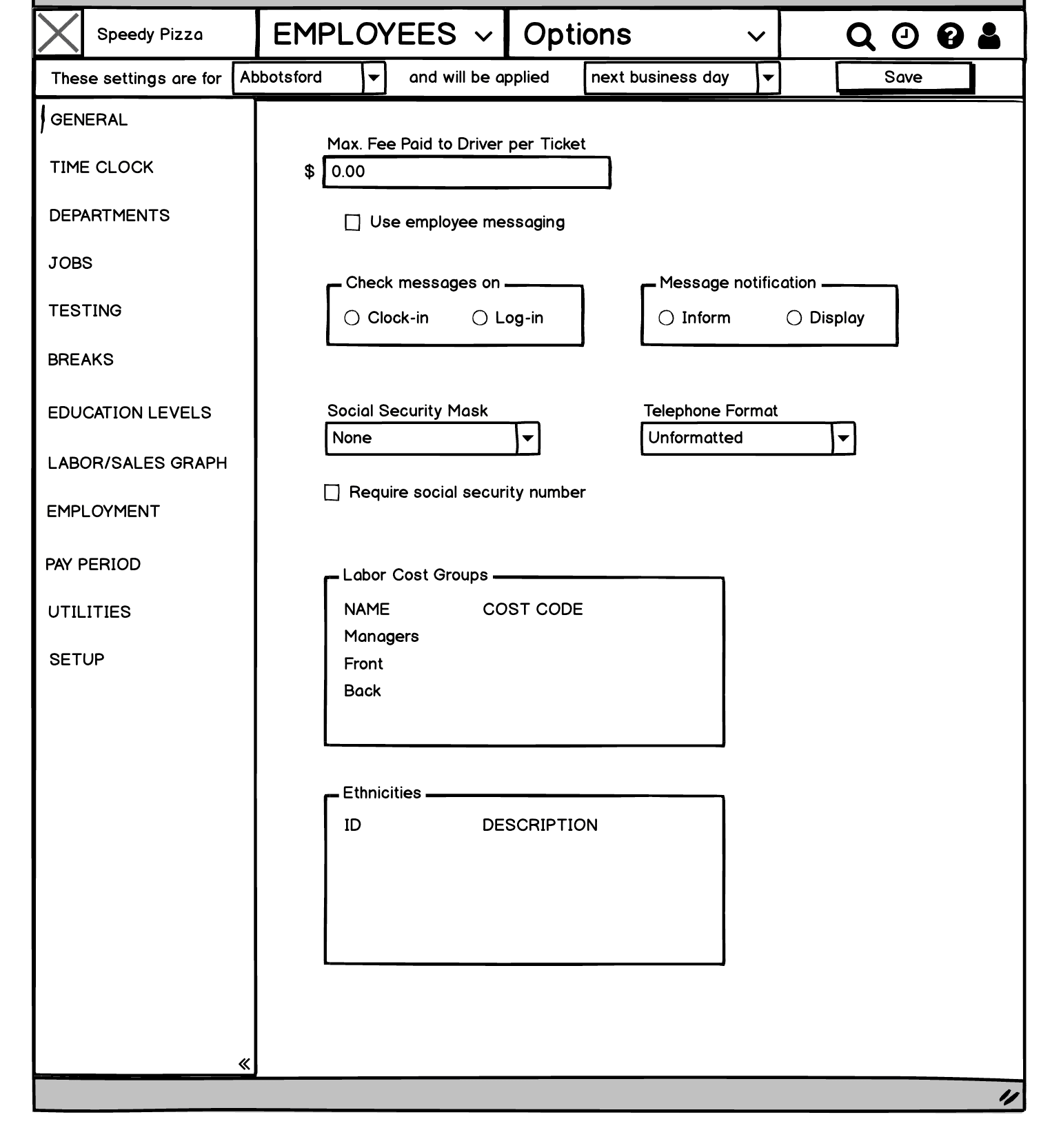
- Levels 1 and 2 go in a jumbo menu. One dropdown in the top bar shows every section and its pages at once, instead of a row of tabs that keeps growing.
- Level 3 moves from tabs to a left sidebar. In early versions I used horizontal tabs for level 3, because each section only had a few pages. As features were added, the tabs had to stack into rows or scroll sideways. I proposed a sidebar, which holds a long list in one column that people can scan quickly. My manager wanted to keep the tabs.
I wireframed both versions with real content. The team saw twelve pages squeezed into three rows of tabs next to one clean column, and chose the sidebar.
I also designed the section icons in the menu from scratch, so they'd share one consistent style.
How It Held Up
The structure has kept growing since launch. Today the menu has 12 sections and about 60 pages. New areas like Order Sources (for third-party ordering apps) and Store Groups fit into it without a redesign.
Not every naming decision lasted. System came back as a home for technical settings that didn't fit anywhere else, and taxes moved into Payments. A catch-all is hard to avoid completely. The card sorts kept it small, so it now holds only a handful of technical settings instead of nearly everything.
Outcome
The portal replaced the two in-store desktop apps with one web app that owners can use from anywhere. I presented the mockups to our support team, the people who knew the old tools best, to check the structure and names.
3 → 12
top-level sections, replacing one deep Settings tree
19
card sort participants across two studies
330+
locations across the 7 restaurant chains we interviewed
Reflection
Let the data settle the debate. Long-time users were sure everything belonged under Settings. One of them had used it for 14 years. Arguing wouldn't have changed their minds, but the card sort results did. When people who don't agree on anything else still group things the same way, that's hard to argue with.
Names are design decisions. Most of the confusion in the old app came from labels, not layout: "Money," "System," "Operations." Changing a name cost almost nothing to build, and it often helped more than moving a screen.
Structure has to be designed on purpose. The old app was built by developers adding one feature at a time, without anyone deciding where things should go. Over 20 years, that's how everything ended up under Settings. A clear structure, with rules for where new things go, is what let the portal grow to 12 sections without falling apart.
What I'd Do Differently
- Test with restaurant owners. Our card sort participants were internal experts, because they knew the product best and we had limited access to customers. Next time I'd add a tree test with real operators, to confirm they can find things before anything gets built.
- Reduce depth itself. I found a better way to show five levels of navigation, but the bigger win would have been needing fewer. I'd merge small pages into one page with section headings, and reveal deeper levels only when someone needs them.
- Make the sidebar collapsible. Some stores open the portal on 1024px-wide POS terminals, where every pixel counts. I designed the sidebar to collapse (the « at the bottom of the wireframe), but it wasn't prioritized. I'd make a stronger case for it, backed by screenshots at that real screen size.